
Menu

Resources

Tasks to Get Out the Vote
Voter Registration
Data Management
Voter Outreach Person to Person
Engage New Voters
Targeted Lists
Postcards

Door to Door Canvass
Virtual Phone Bank Canvasses
Robocalls
Voter Outreach Digital
Create Targeted Slate Cards

Send Text Messages
Target your Text Messages with EMS

Send Email Messages Using FES

Tools to Conduct Tasks
VoteBuilder (VAN) Basic
VoteBuilder 101

Getting Started with VoteBuilder

VoteBuilder (VAN) Advanced
Creating Survey Questions, Scripts and Activist Codes
Lists – Advanced
Specialized Lists
VoteBuilder Tutorial
VoterBuilder Basic
Getting Started

Finding Voters

Lists

Turfs

Using MiniVAN

Data Entry

VoteBuilder Advanced
Data Entry Advanced

Lists Advanced
MiniVAN Campaign

MiniVAN Tasks in VoteBuilder

Monitor the System

My Campaign Functions

Phone Banks

Reports
Scripts
Users

MiniVAN Users

MiniVAN
Mobilize

Movement Labs Texting
Target your Text Messages with EMS

Send Email Messages Using FES
VAT
VAT
VAT to VAN Tutorial

Reach

How to Format a Text Block

1. To format text, click on the paragraph you want to format.

2. There are various ways to format text. The easiest way to make text bold / not bold is to use the floating toolbar that appears when you select the paragraph with the text you want to format.
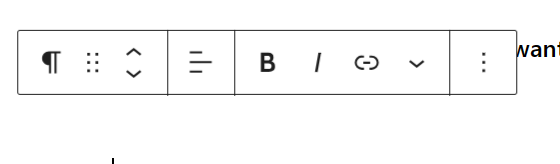
3. Highlight the text you want to format and click on the ‘B’. To align the text, press on the alignment icon to the left of the ‘B’.

4. You can also make the text Italic or a link. Press the down arrow for additional formatting options.
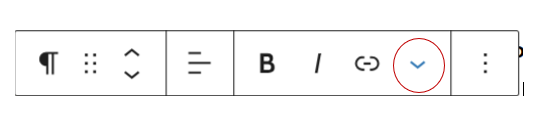
5. If you want to further format the text, you will need to go to the Settings toolbar.

6. Click the Settings Icon at the top right of the screen.
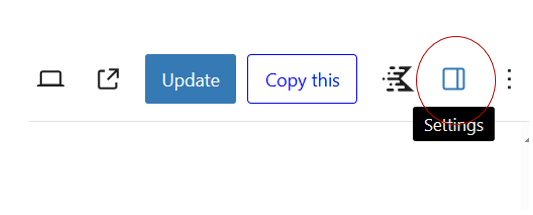
7. Click on the paragraph you want to format.

The Block Settings tab will be active.

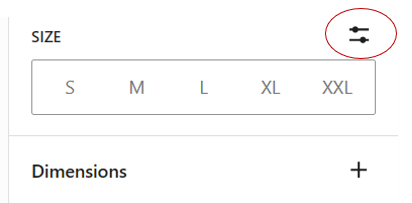
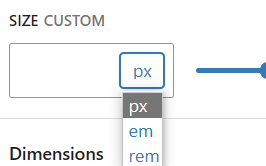
8. You can change the color of the text and background and size of the letters. Scroll down to the SIZE section on the Settings Toolbar. If the default sizes aren’t sufficient, click on the arrows to the right of the word SIZE and enter the size you want.
9. Click the 3 vertical dots to the right of Topography for additional settings.
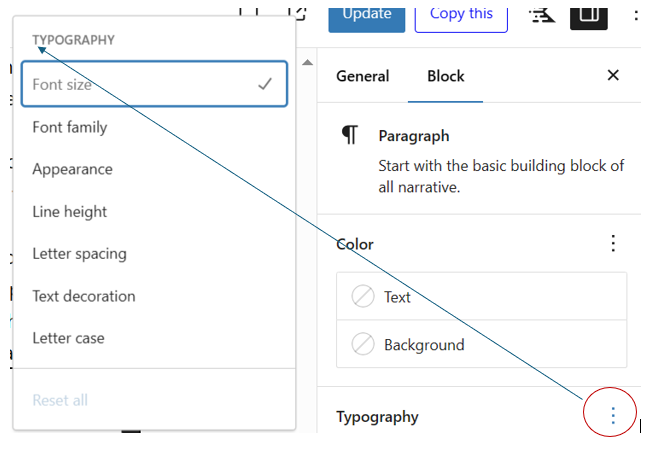
10. To add padding (space) above or below the paragraph, scroll down to Dimensions and click on the + icon.

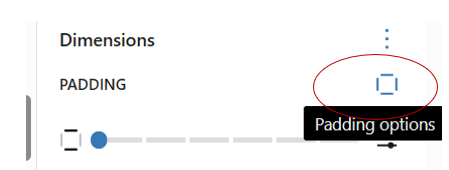
11. Click on Padding. The padding options will appear.
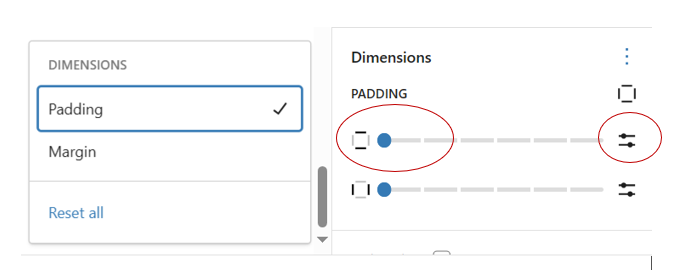
12. To add padding at the top and bottom of the paragraph, click along the top/bottom line.
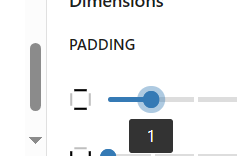
13. For finer control over the degree of padding, click the arrows to the right of the top/bottom icon and enter a number.

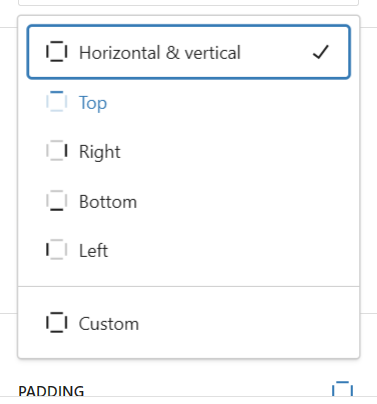
14. To add padding to only the top, bottom, left side or right side of the paragraph, click on the icon to the right of the Padding section and select which padding you want to add.
How to Format a Text Block

1. To format text, click on the paragraph you want to format.

2. There are various ways to format text. The easiest way to make text bold / not bold is to use the floating toolbar that appears when you select the paragraph with the text you want to format.

3. Highlight the text you want to format and click on the ‘B’. To align the text, press on the alignment icon to the left of the ‘B’.

4. You can also make the text Italic or a link. Press the down arrow for additional formatting options.

5. If you want to further format the text, you will need to go to the Settings toolbar.

6. Click the Settings Icon at the top right of the screen.

7. Click on the paragraph you want to format.

The Block Settings tab will be active.

8. You can change the color of the text and background and size of the letters. Scroll down to the SIZE section on the Settings Toolbar. If the default sizes aren’t sufficient, click on the arrows to the right of the word SIZE and enter the size you want.

9. Click the 3 vertical dots to the right of Topography for additional settings.

10. To add padding (space) above or below the paragraph, scroll down to Dimensions and click on the + icon.

11. Click on Padding. The padding options will appear.

12. To add padding at the top and bottom of the paragraph, click along the top/bottom line.

13. For finer control over the degree of padding, click the arrows to the right of the top/bottom icon and enter a number.

14. To add padding to only the top, bottom, left side or right side of the paragraph, click on the icon to the right of the Padding section and select which padding you want to add.


Resources

Tasks to Get Out the Vote
Voter Registration
Data Management
Voter Outreach Person to Person
Engage New Voters
Targeted Lists
Postcards

Door to Door Canvass
Virtual Phone Bank Canvasses
Robocalls
Voter Outreach Digital
Create Targeted Slate Cards

Send Text Messages
Target your Text Messages with EMS

Send Email Messages Using FES

Tools to Conduct Tasks
VoteBuilder (VAN) Basic
VoteBuilder 101

Getting Started with VoteBuilder

VoteBuilder (VAN) Advanced
Creating Survey Questions, Scripts and Activist Codes
Lists – Advanced
Specialized Lists
VoteBuilder Tutorial
VoterBuilder Basic
Getting Started

Finding Voters

Lists

Turfs

Using MiniVAN

Data Entry

VoteBuilder Advanced
Data Entry Advanced

Lists Advanced
MiniVAN Campaign

MiniVAN Tasks in VoteBuilder

Monitor the System

My Campaign Functions

Phone Banks

Reports
Scripts
Users

MiniVAN Users

MiniVAN
Mobilize

Movement Labs Texting
Target your Text Messages with EMS

Send Email Messages Using FES
VAT
VAT
VAT to VAN Tutorial

Reach